
Students often deal with images. They usually take photos of the whiteboard/chalkboard to keep a record of the topic explanations by the teacher. Also, they take pictures from library books to get more information on a specific topic. It helps during revision.
But the problem with these images is that they often get buried among many photos in your phone’s gallery. This can slow you down during exam preparation, as you have to locate the exact image from multiple images.
The good news is that you can make this process easier and less time-consuming by converting your images into a Word file. This way, you don't have to search through multiple images from your photo gallery to locate the required images. Let’s learn an easy method to convert your images into a Word file online in this blog.
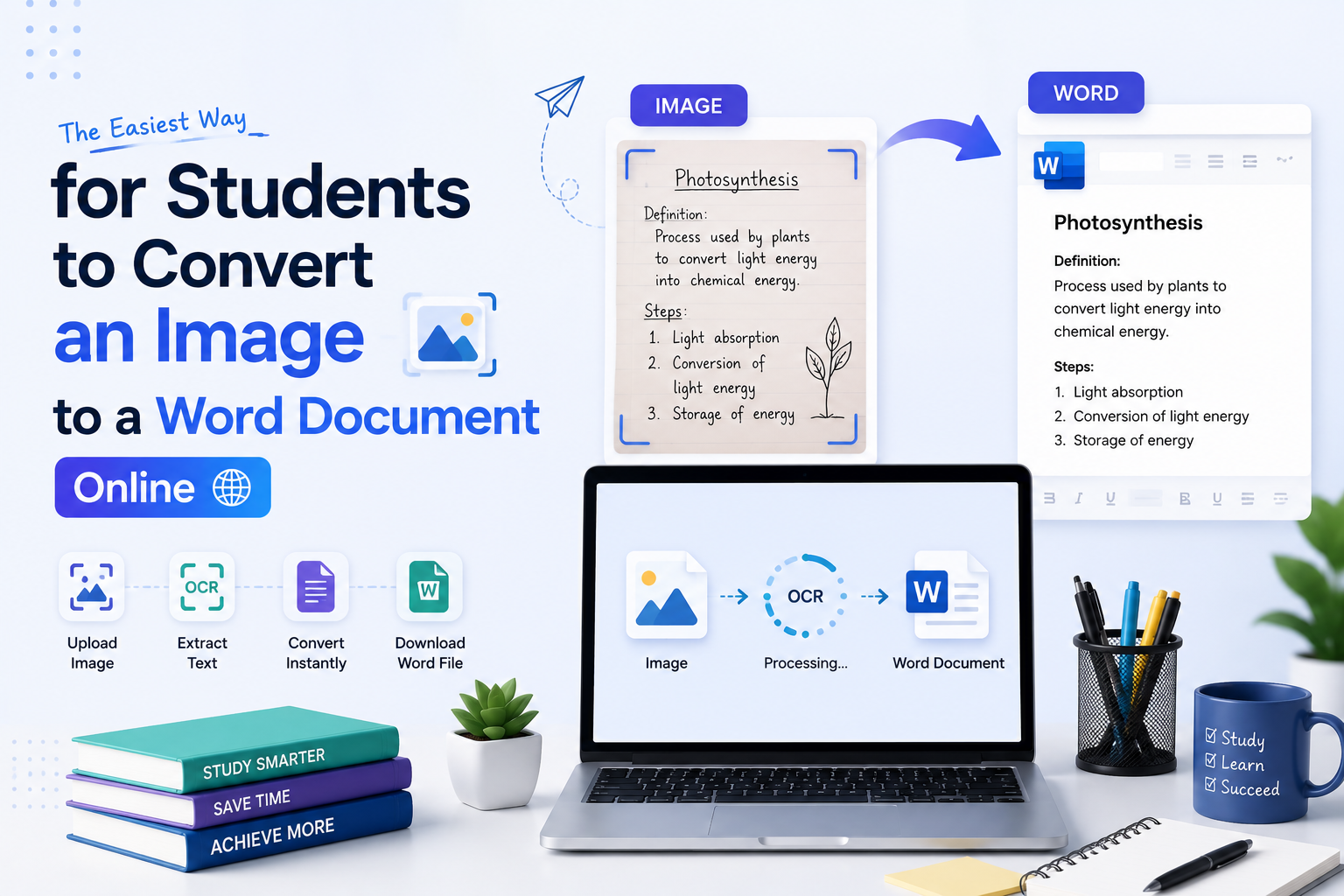
Easiest Way to Convert Images to a Word Document Online
The following is an easy method to convert your images into a Word document.
Step 1 - Prepare Your Images
Gather the images that you want to convert into a Word document. Make sure that the images are taken in good lighting with the text easily readable. Clear images are easier to read during revision.
Step 2 - Select an Image to Word Converter
Open your web browser and search for an online image to Word converter. You may see multiple converters in the search results. However, you should select a reliable tool to perform this conversion. To walk you through this method, we’ve selected an online image to Word converter that we found quick and consistent. We’ll proceed with the next steps using that tool.
Step 3 - Upload the Image File
Once you have organized the images and selected the online converter, open it, and click on the “Browse” button to upload your images.
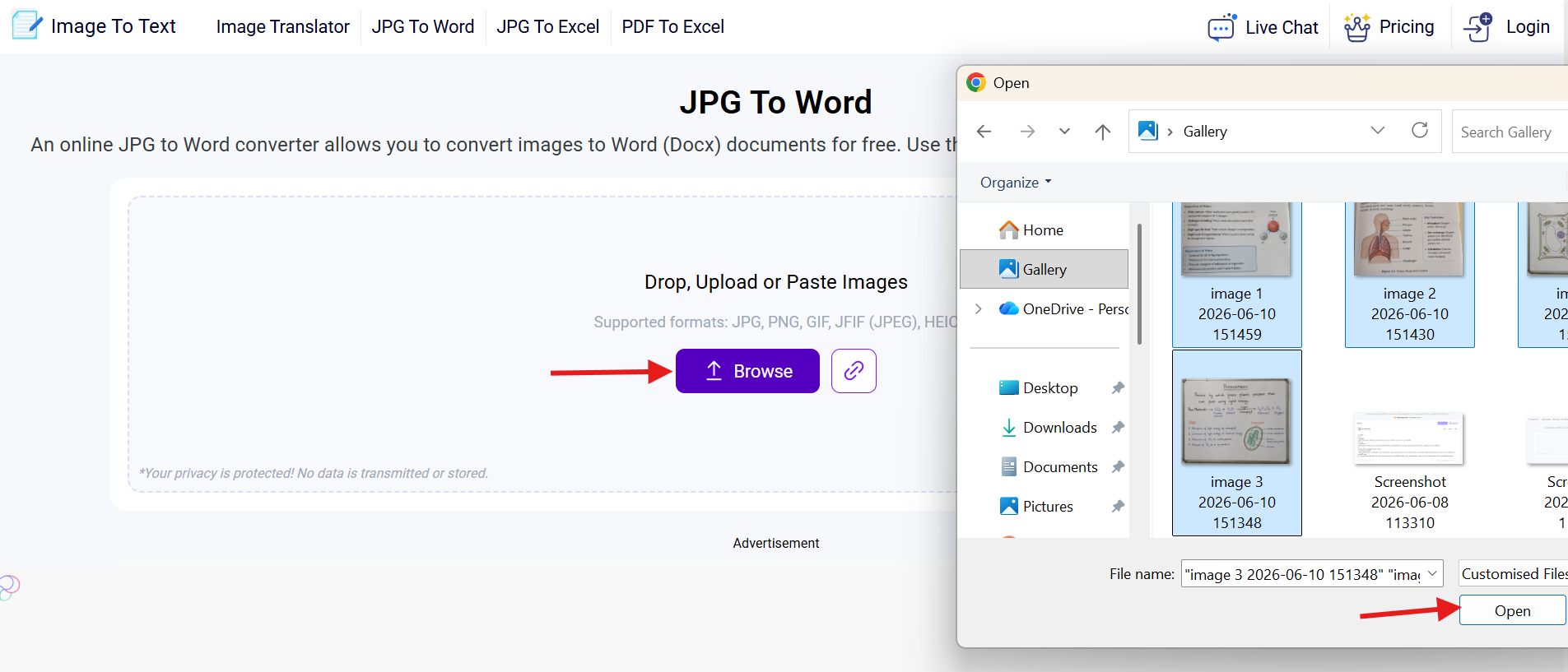
Tool Link - https://www.imagetotext.info/jpg-to-word
After selecting your images, click on the “Open” button to upload your images into the tool.
Step 4 - Start the Conversion
Upon uploading the images into the tool, it will give you the option to convert them into Word. But before converting, take a few seconds to check whether you’ve uploaded the correct images.
You can also change the sequence of images by long pressing and shifting an image over the next one. This tool also provides the option to crop the images, but this can vary depending on the selected tool.
Once you are sure that the image sequence and the size are correct, click on the “Convert” button as shown in the image below.
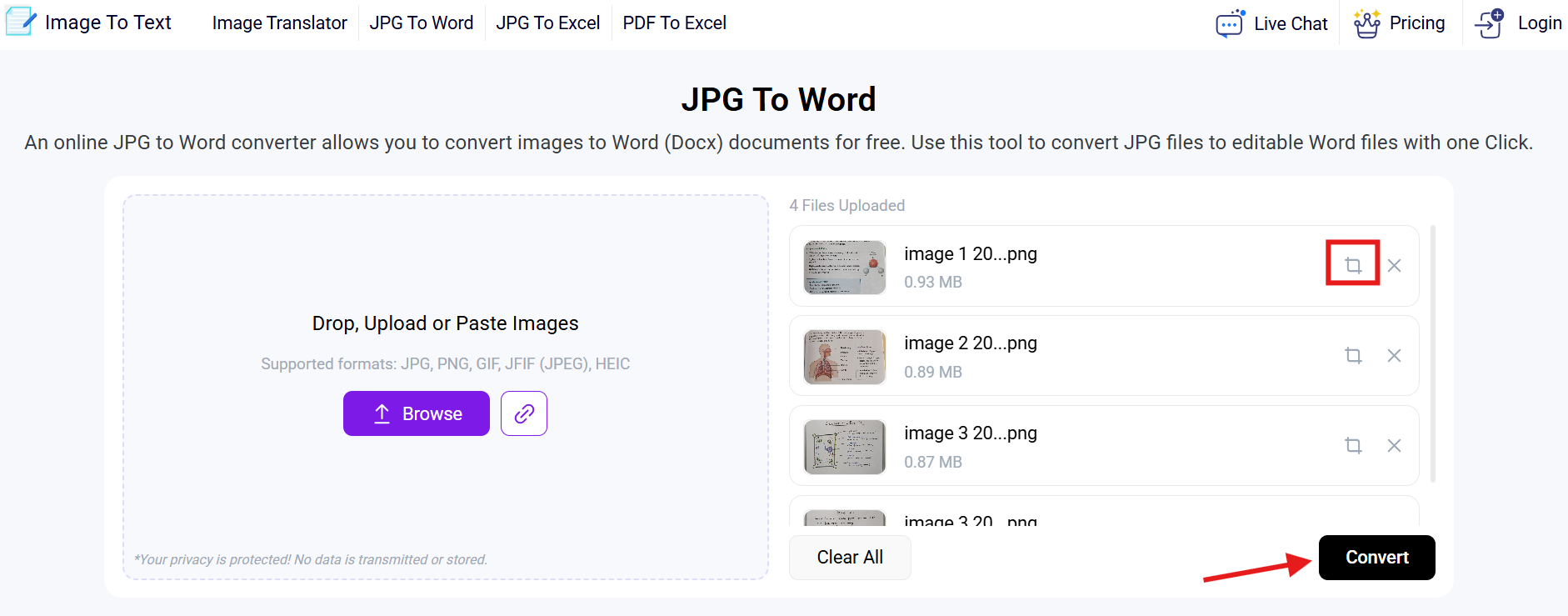
The tool will take a few seconds to give you the converted Word document, depending on the number of images selected.
Step 5 - Download the Word File
After converting your images into a Word file, the tool will give you the option to download it. Select the “Word file” from the drop-down menu to merge all images into a single Word file. To download the images separately, you can select the “Zip file” option.
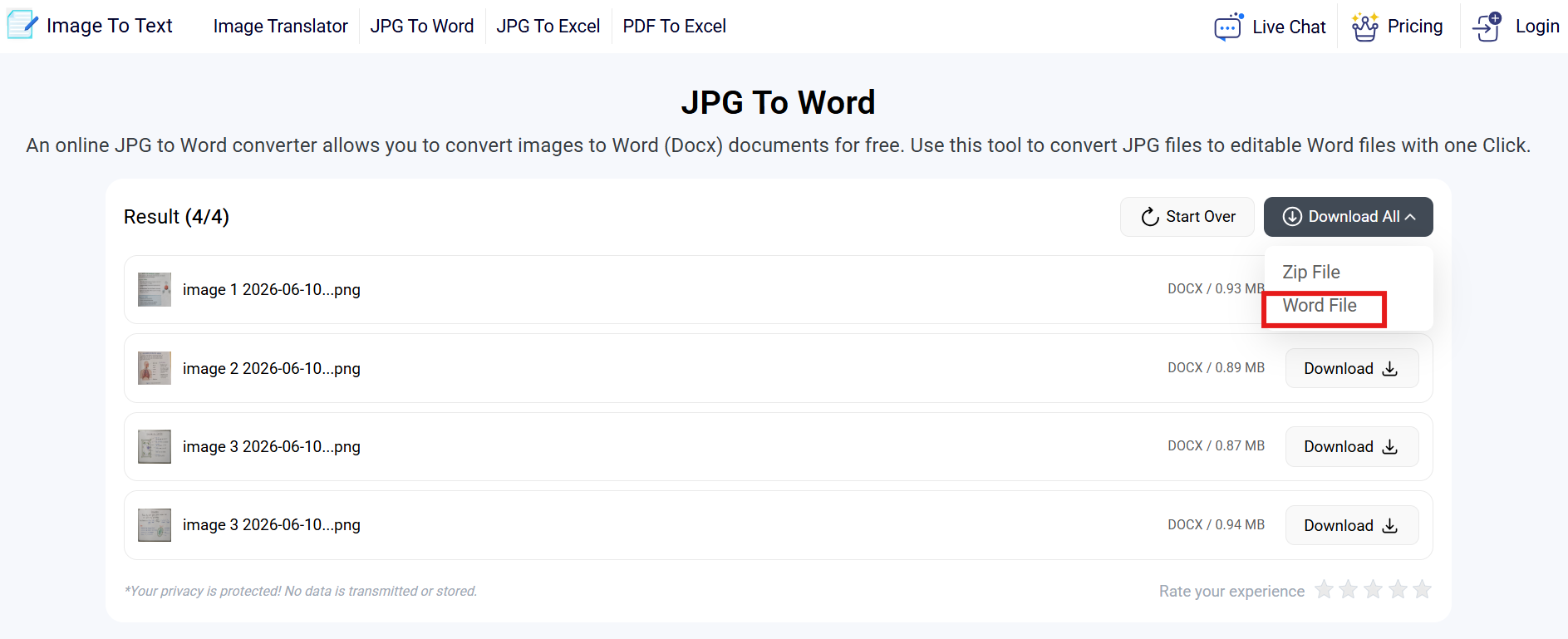
The downloading will start automatically, depending on the tool you selected.
Step 6 - Review and Edit
When your file is downloaded, open it and check if everything looks correct. Check for small issues. Fix image spacing or add some headings if needed. If it requires some major changes, you can repeat the process as it is quick and easy.
This is how you can easily convert your images into a Word document online. It is quick and doesn't require you to pay anything.
How This Improves Studies
Once you get used to this method, it can improve your study routine. You no longer need to waste time looking for a specific image or revisit the library to take pictures from books again. All you need to do is just convert images into a Word file. Whenever you need to revise something, you can open that Word file and easily find that picture by scrolling a little.
It also improves note-taking and sharing. If you write down your notes on multiple notebooks, you can take their pictures and combine them into one Word file. This way, you can find the information easily. Also, you can share the Word file with your friends or classmates without the need to lend your notes.
Final Thoughts
Images are easy to capture. But they are not so practical when you have to locate a specific image among many images. For students, it can be a hectic task to find the required image from multiple images in their smartphone’s gallery.
However, this issue can be solved by converting the images into a Word file. This way, your images are saved in one place and are easily accessible. To convert your images into a Word file, you don't need to buy expensive software or download anything.
All you need to do is access an online Image to Word Converter and upload your images into the tool. Check the sequence and click the convert button. After converting the images, download the Word file.
This is a quick and easy method. Try this the next time you take pictures of study material and see how it helps improve learning.


.webp)
.webp)